
Remote System screen
In previous lessons, we have used the term “Remote Systems” a few times. In this video, we are going to put it in the spotlight!
A remote system is any system that the iNSight application connects to.
Managed File Transfer (MFT) requires access to a remote system in order to collect and distribute files remotely. The advantage of this is that it gives us the ability to collect data without having to give the third party access to our network.
The collect and distribute processes use remote systems and require the location where the files will be collected from and distributed to.
The Remote System screen
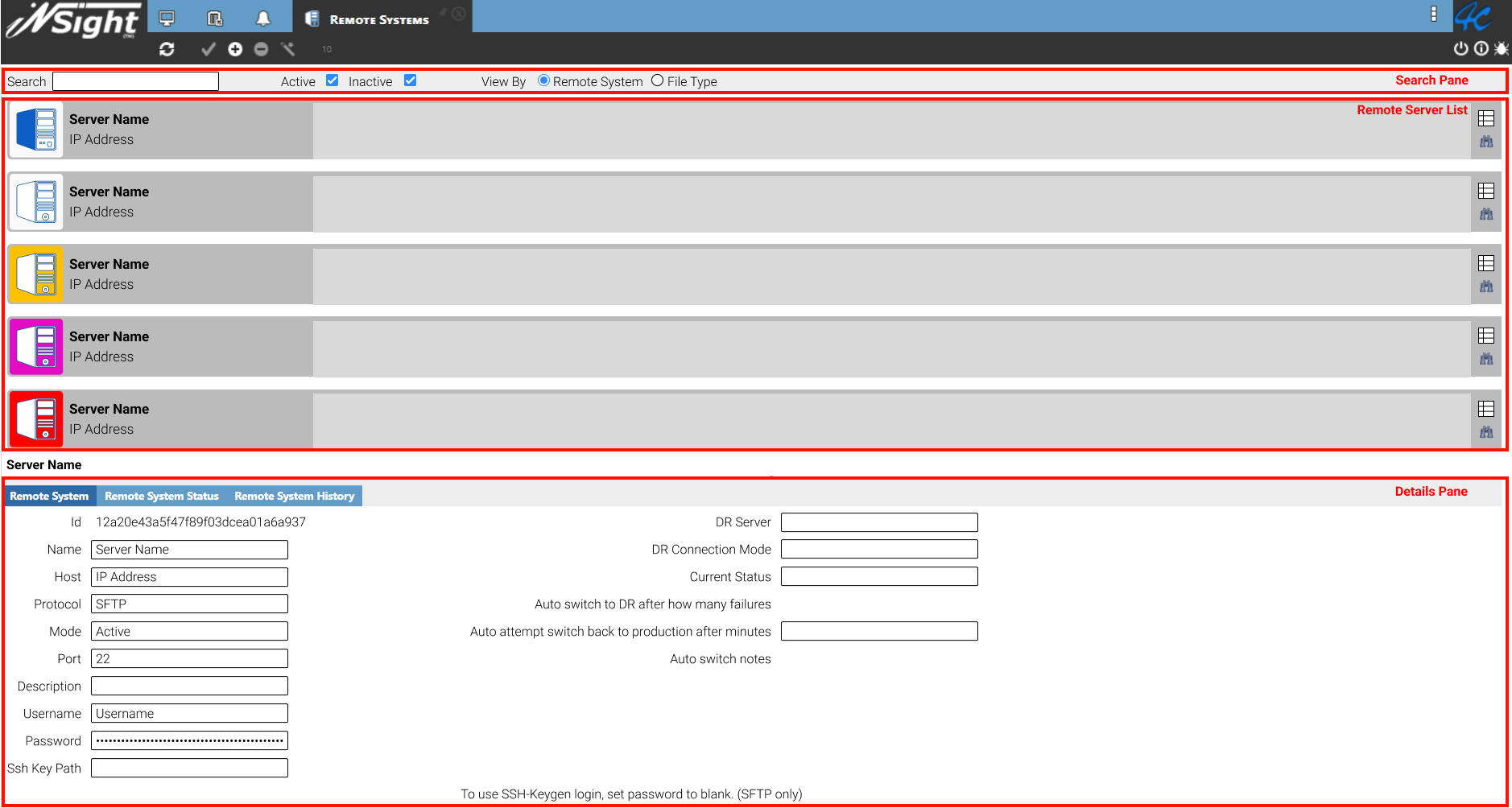
The Remote System screen allows you to create and configure remote systems. The screen consists of three panes:
- Search pane
- Remote Systems List pane
- Details pane
Search pane
The Search pane is found at the top of the Remote Systems screen and allows you to filter the remote systems and any of their attached processes.
The Search field allow you to enter the name of the remote system or process you are looking for.
You can decide whether to look for an active or inactive process using the Status option.
The View By option allows you to decide whether you want to view remote systems or the data stream (file type) it is used in.
Remote Systems List pane
The second pane is the Remote Systems List pane, where each row represents a remote system configured on the system. From here you can view the remote system’s name and status.
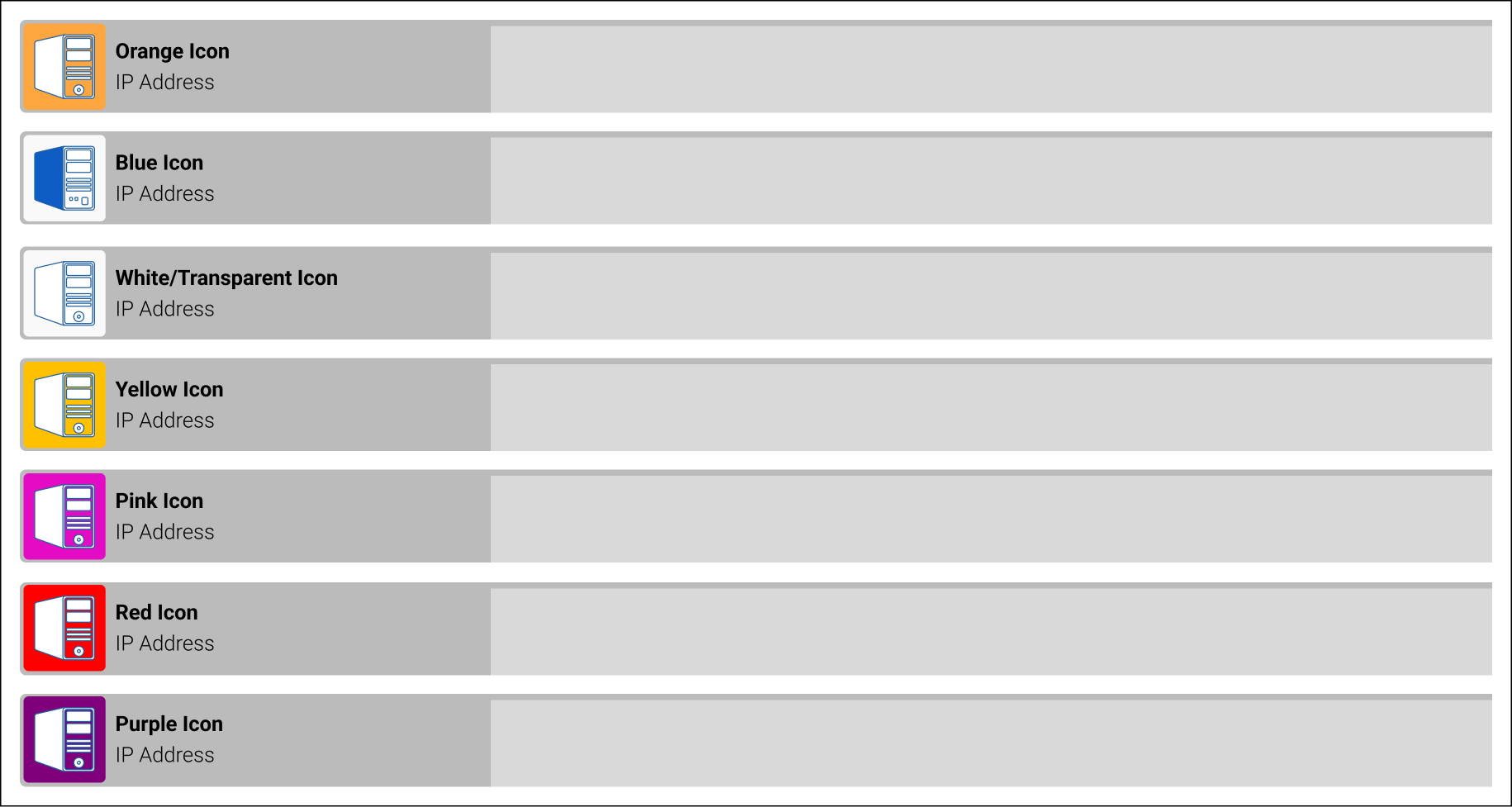
There are seven statuses, which you can determine based on the colour of the icon.
- Orange – Shows that the remote system is being tested. This status is automatically assigned after a remote system is created.
- Blue – Shows the local system that is responsible for local locators and distributors.
- White – Shows that the remote system has been set up correctly and that a successful connection has been made.
- Yellow – Shows that you are currently connected to the Disaster Recovery system.
- Pink – Shows inconsistent connectivity as a result of the physical host.
- Red – Shows that no connection has been made.
- Purple – Shows that the remote system has been set up using either an incorrect username or password. This status is automatically applied to prevent the system from attempting to reconnect and potentially lock out your account.
If you forget what the icon colour means you can hover over it to view the status.
Details pane
The Details pane allows you to configure a remote system.
If the pane isn’t visible when you select a remote system, you can access it by clicking on the Grey Arrow that can be found at the bottom of the screen. The reverse is also possible should you not want to view the pane.
The Details pane consists of three tabs:
- Remote System tab – Used to configure the remote system.
- Remote Status tab – Used to view the status of the remote system.
- Remote System History tab – Used to view the history of the remote system.