
Installing your VM and starting up iNSight on ARM-based Mac

Download the VMDK file
We will be using a QCOW2 (QEMU Copy-On-Write) file for our iNSight all-in-one Postgres VM installation. A QCOW2 file is a disk image format used by QEMU that supports advanced features such as compression, snapshots, and dynamic allocation, making it efficient for virtual machine storage and management.
Download and extract the Insight Postgres Sandbox VM 1.22.292.p2 VMDK file and save it to your local machine.
Download the required software
You will need to download and install the following software applications in order to complete your VM installation.
SSH terminal emulator
You will require an SSH (Secure Shell) terminal emulator, which is a software application that allows you to establish secure remote connections to other computers over a network.
-
We recommend you use the Cyberduck terminal emulator application.
Virtualisation software application
You will need a virtualisation software application that allows you to create and run multiple virtual machines (VMs) on one physical computer. We recommend you use UTM | Virtual machines for Mac, which is a free and open-source virtualisation software.
You can purchase the Mac App Store version which is identical to the free version and there are no features left out of the free version. The only advantage of the App Store version is that you can get automatic updates.
Installling your VM
Once you have installed your SSH terminal emulator and virtualisation software application, you are ready to begin your VM installation.
1. Open the UTM application.
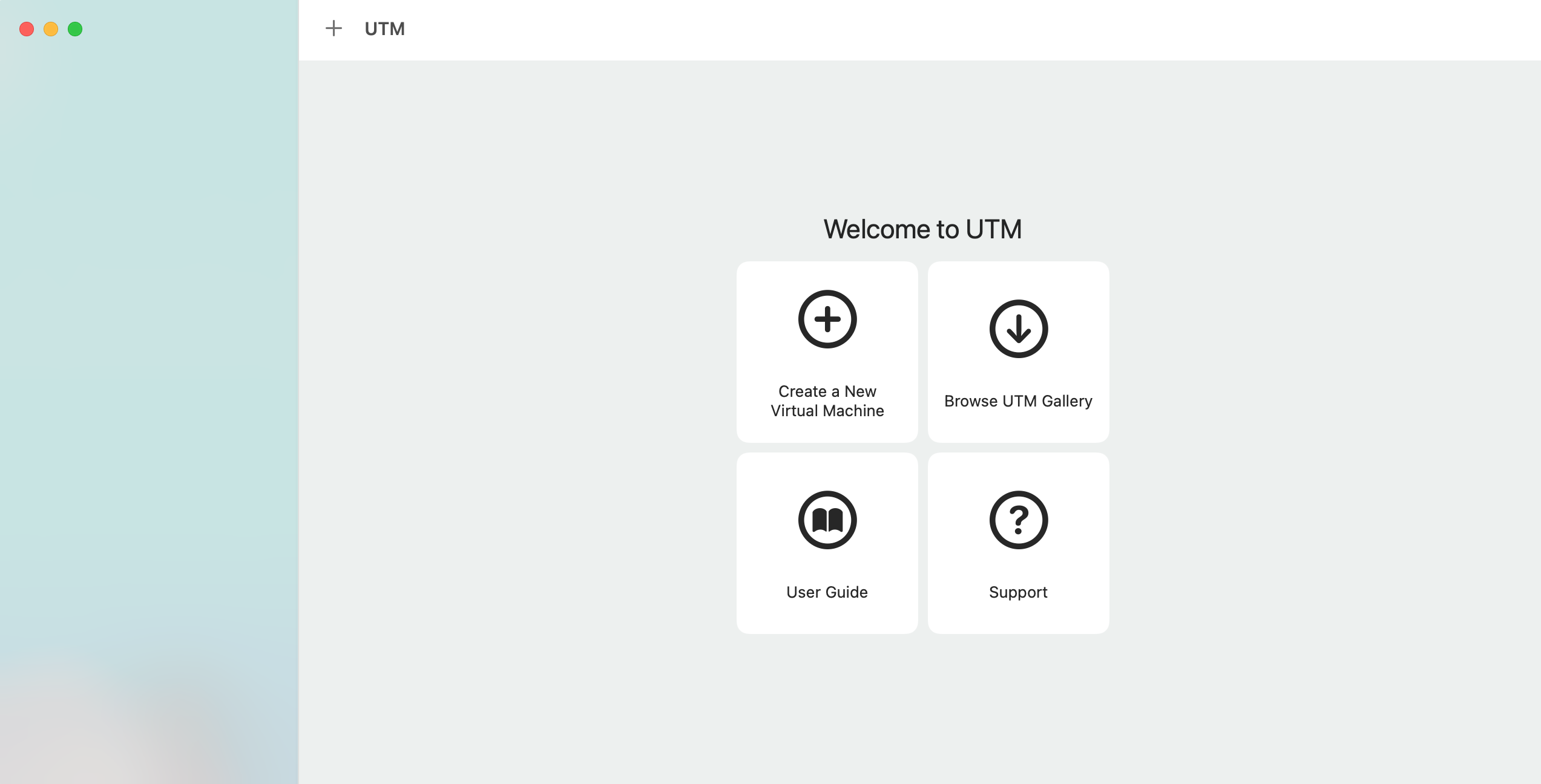
If any updates are required, click OK on the information message and proceed.
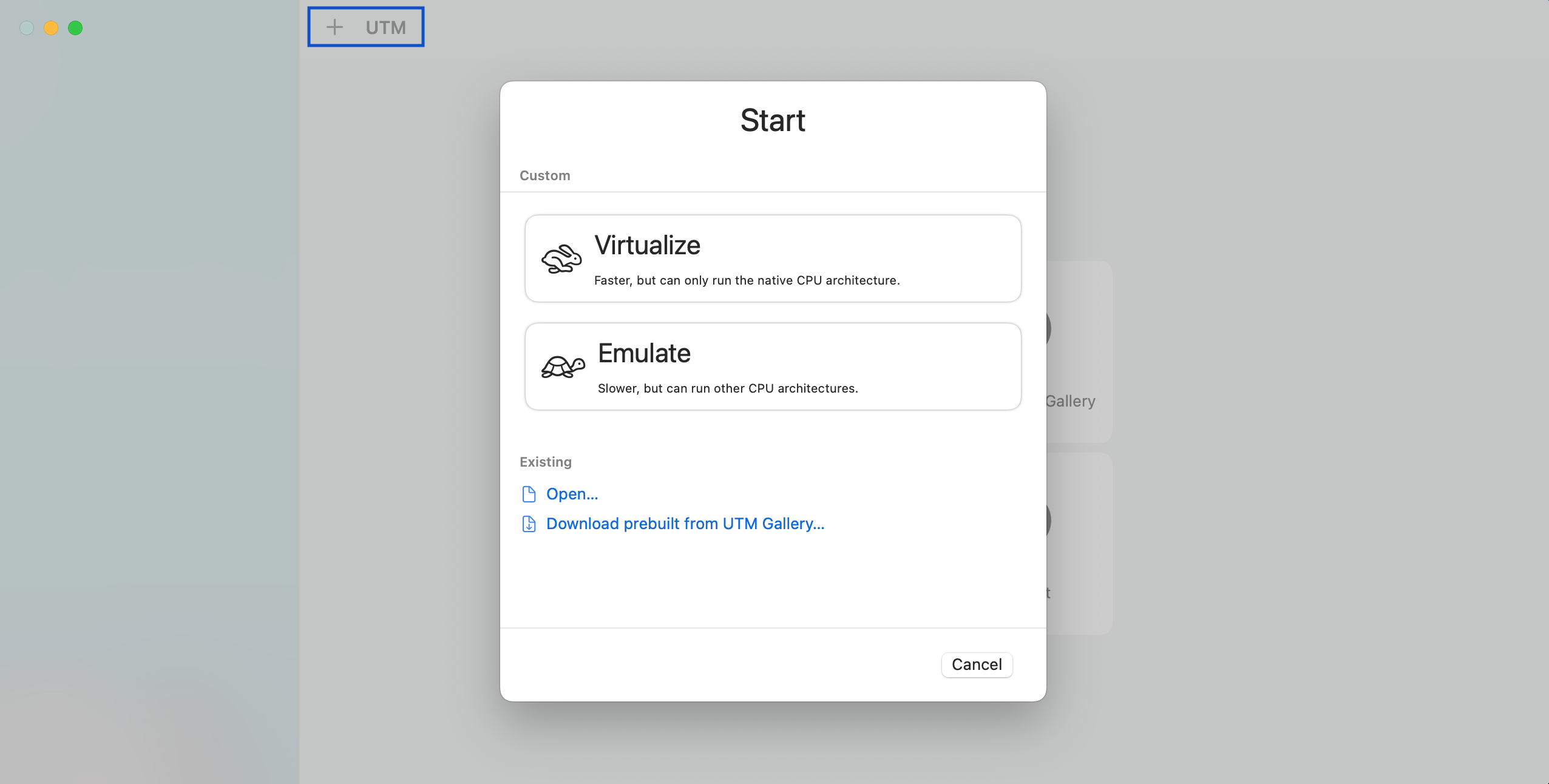
2. Click on the + button next to UTM and select the Emulate.
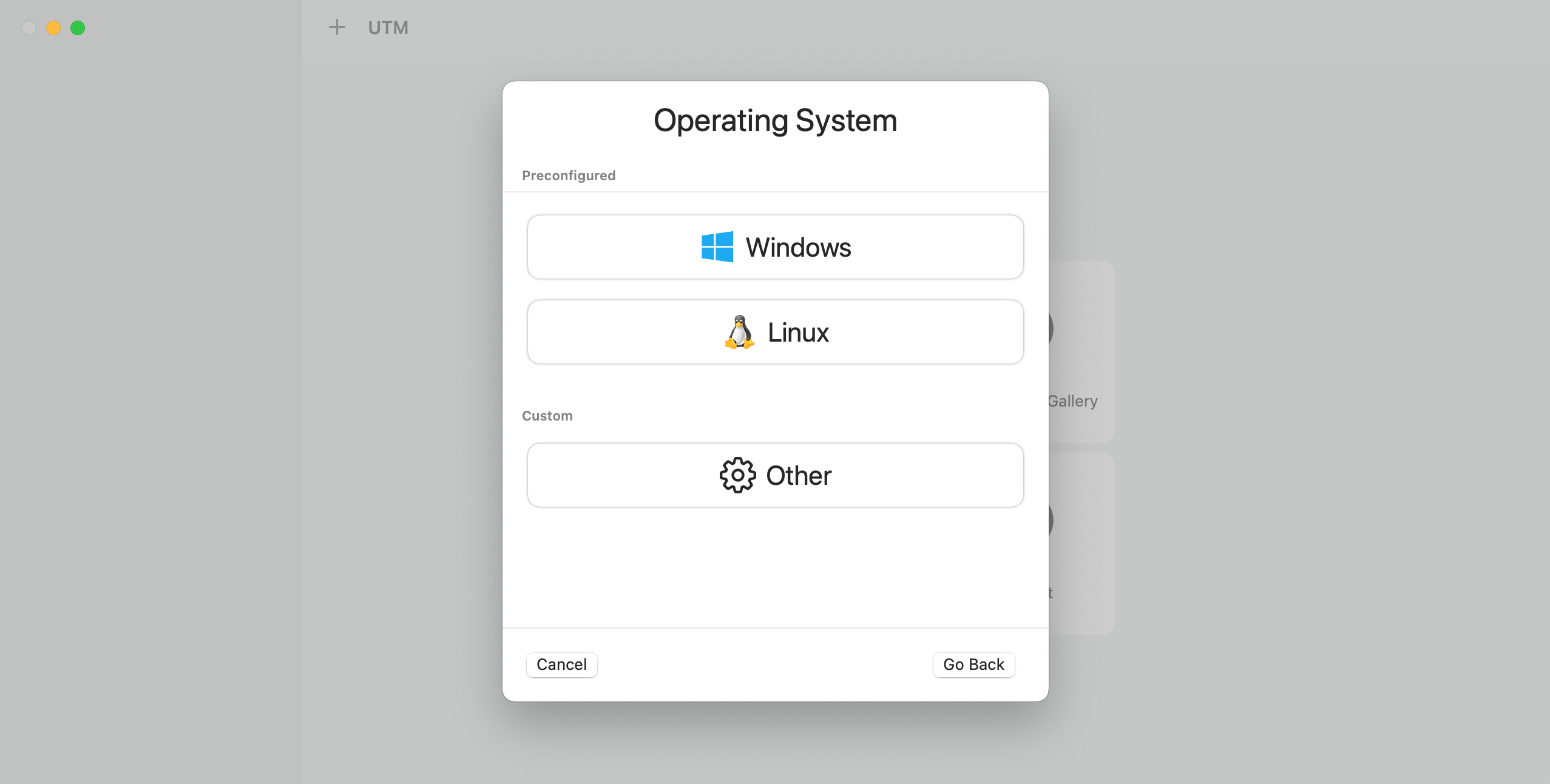
3. On the Operating System page, click the Other option.
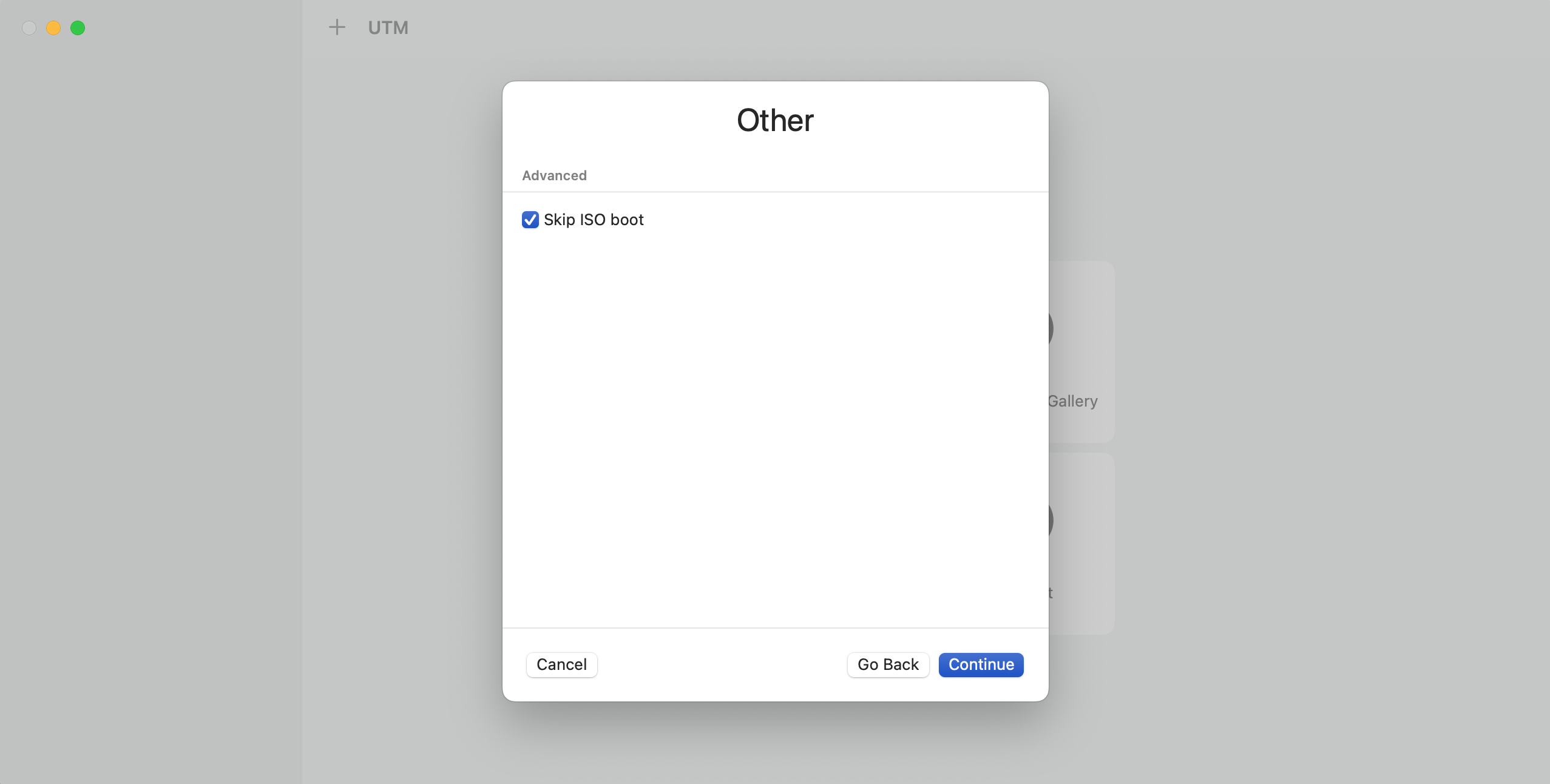
4. Enable the Skip ISO boot option and click Continue.
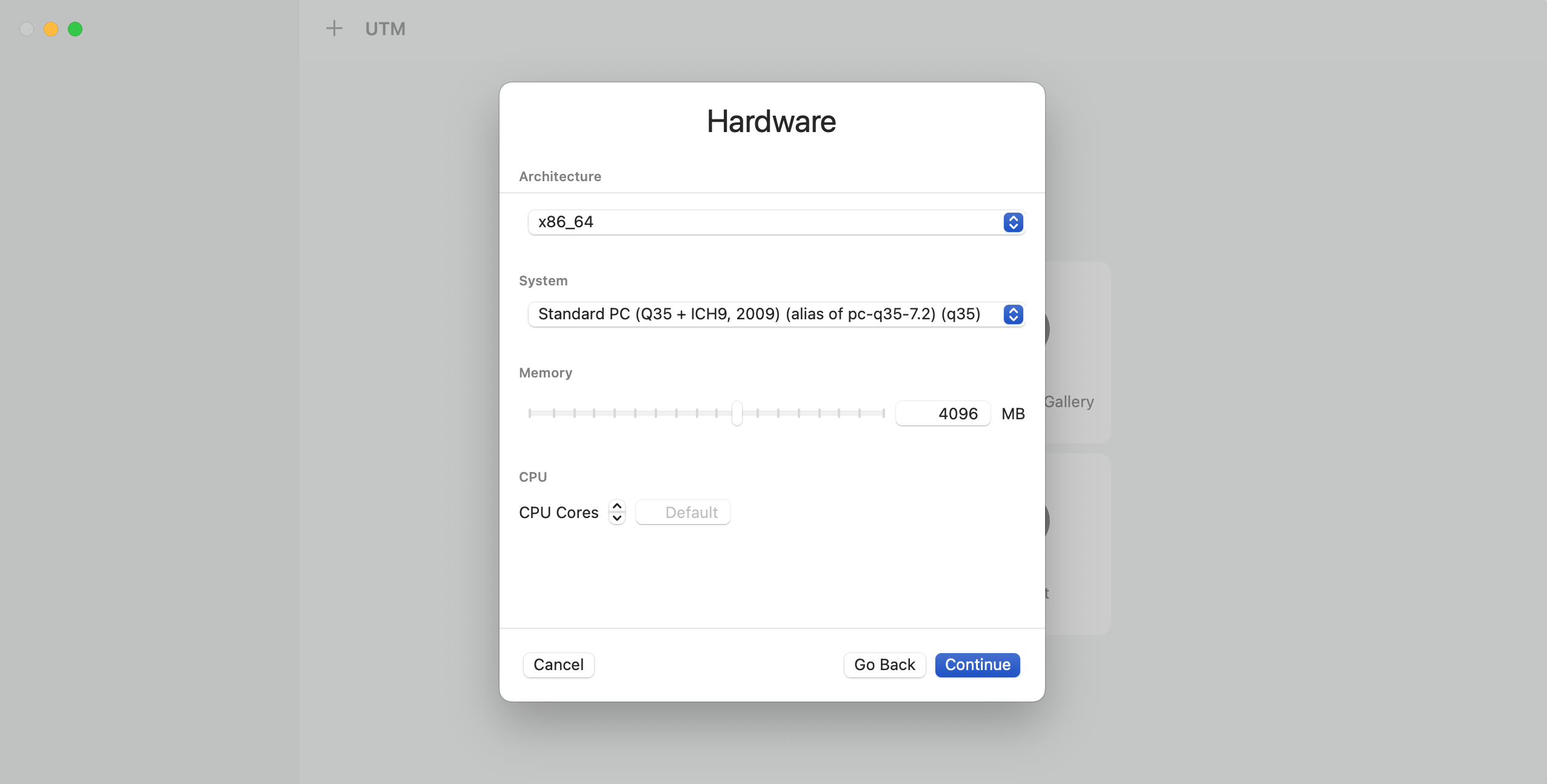
5. On the Hardware page, you can keep the settings as is and click the Continue.
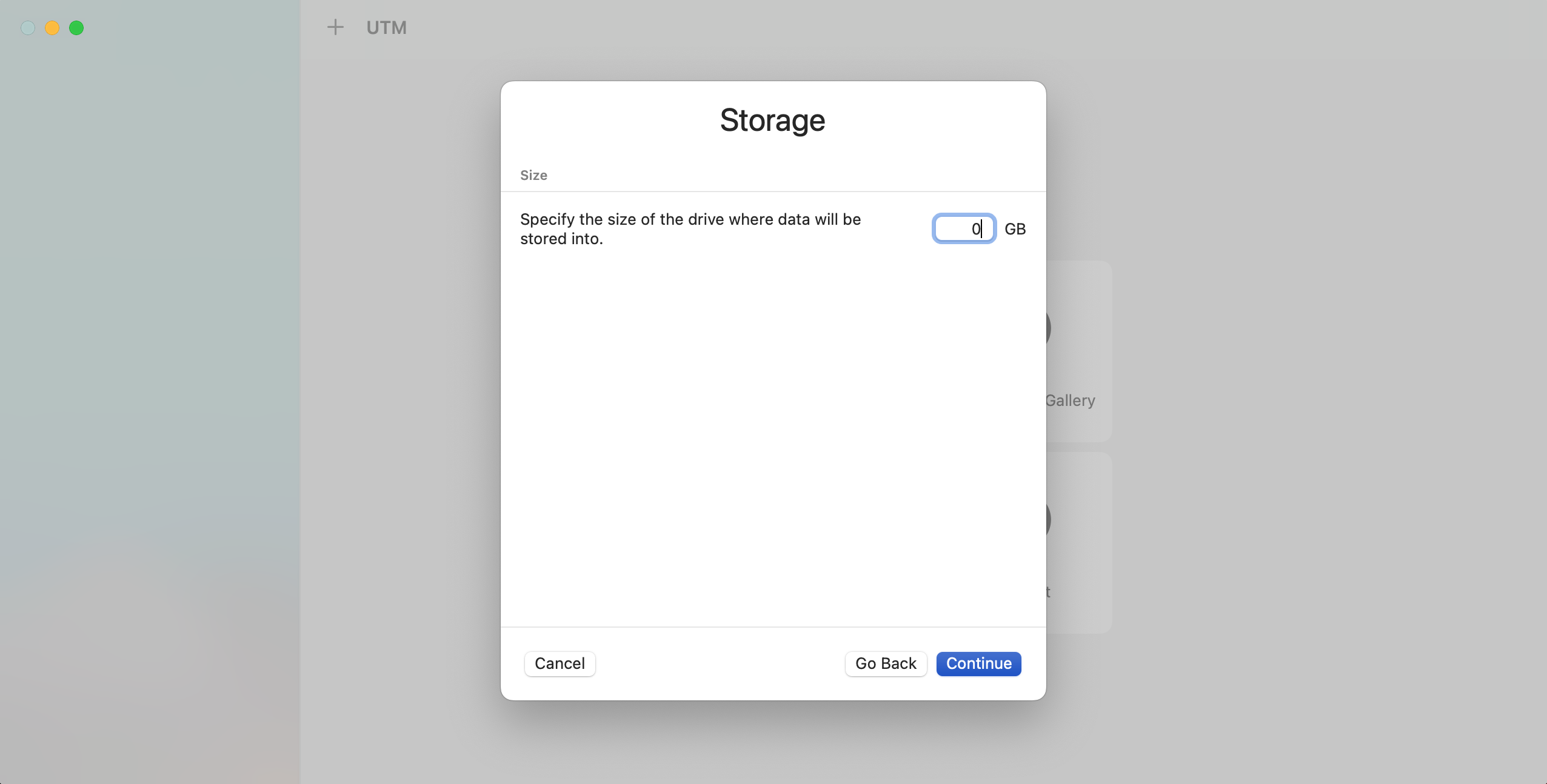
6. On the Storage page change the size of the drive to 1 GB , as we will be deleting it, and click Continue.
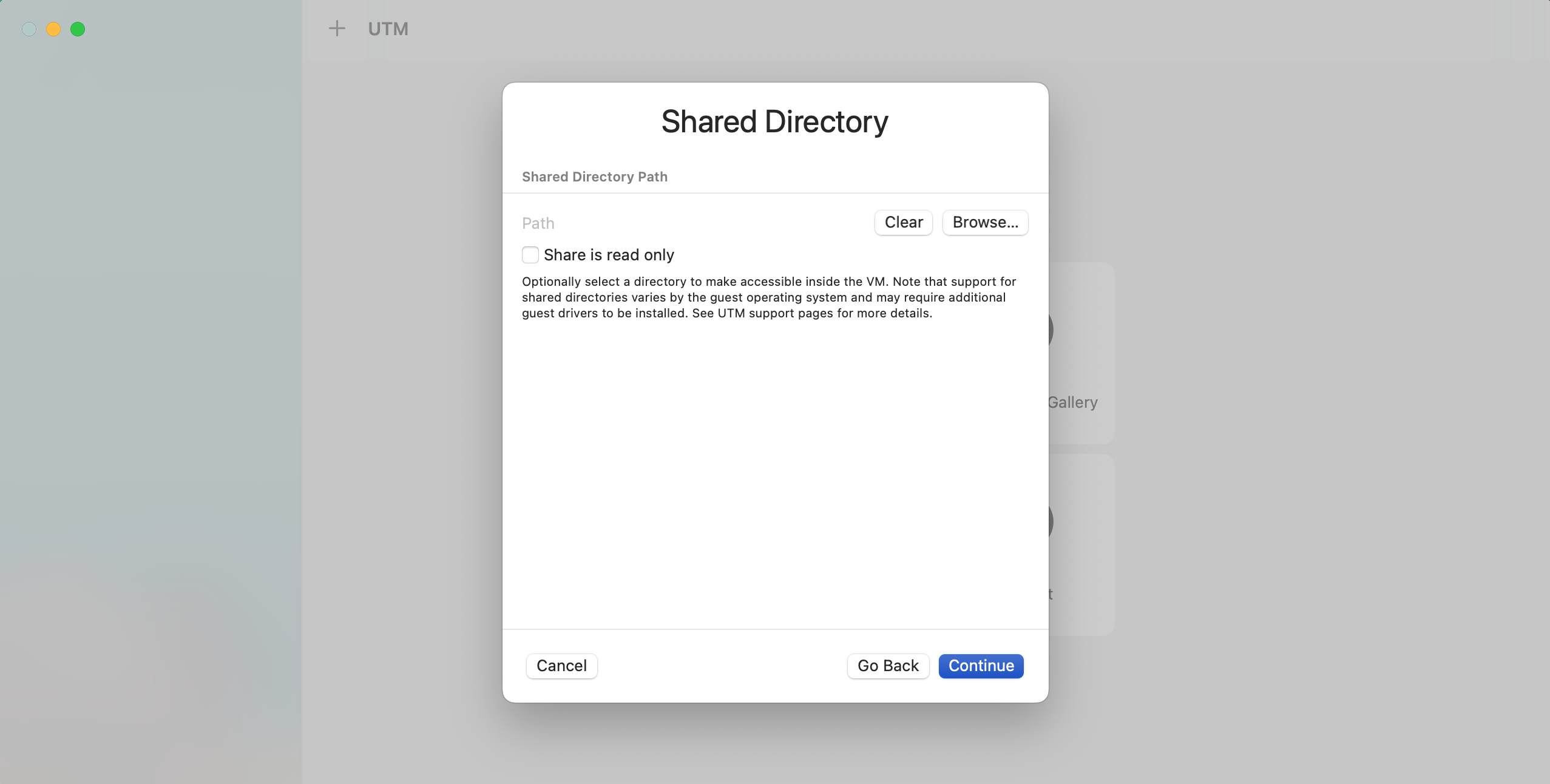
7. Click Continue on the Shared Directory page.
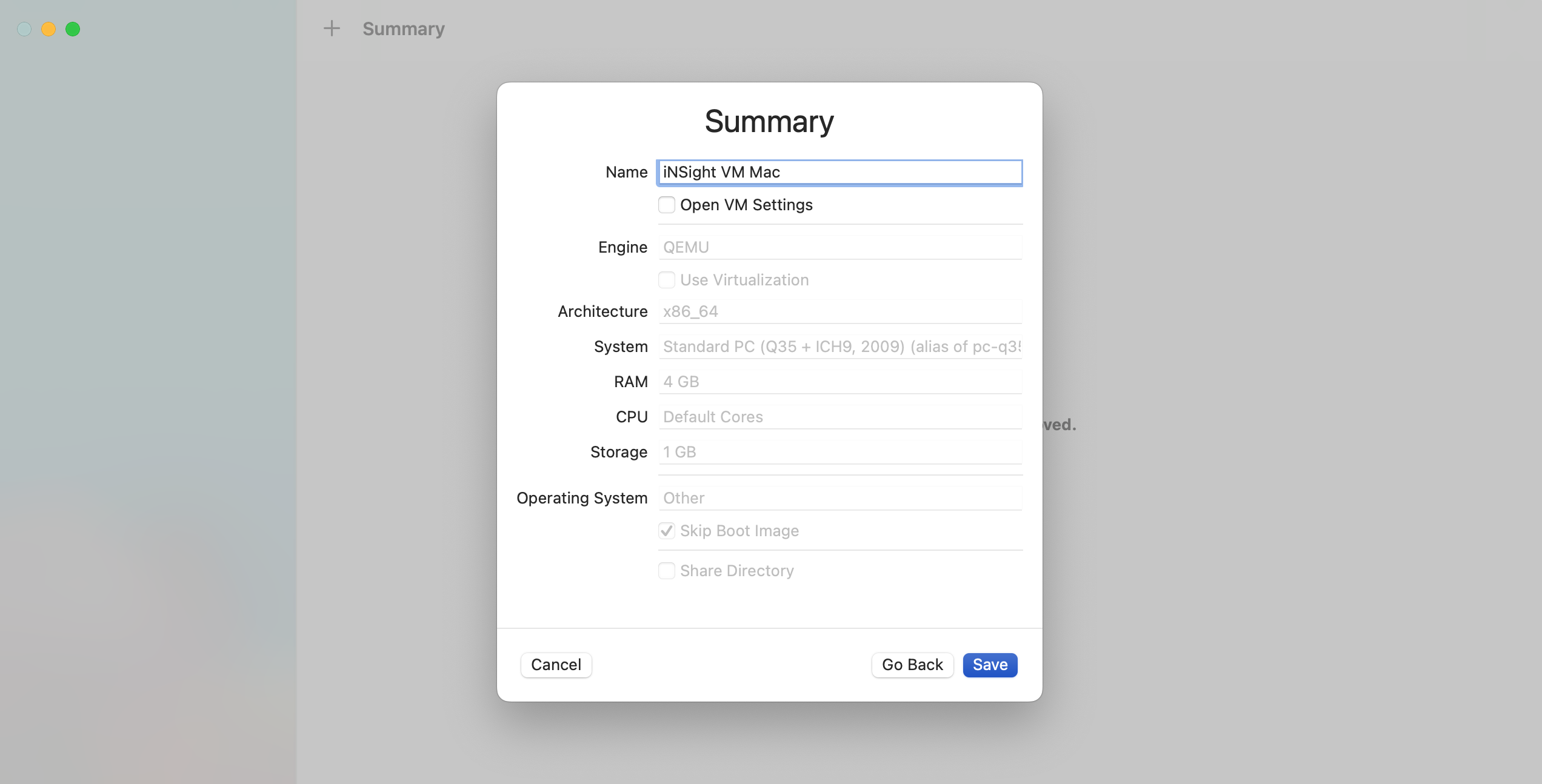
8. Change the Name of the VM to iNSight VM Mac and click Save.
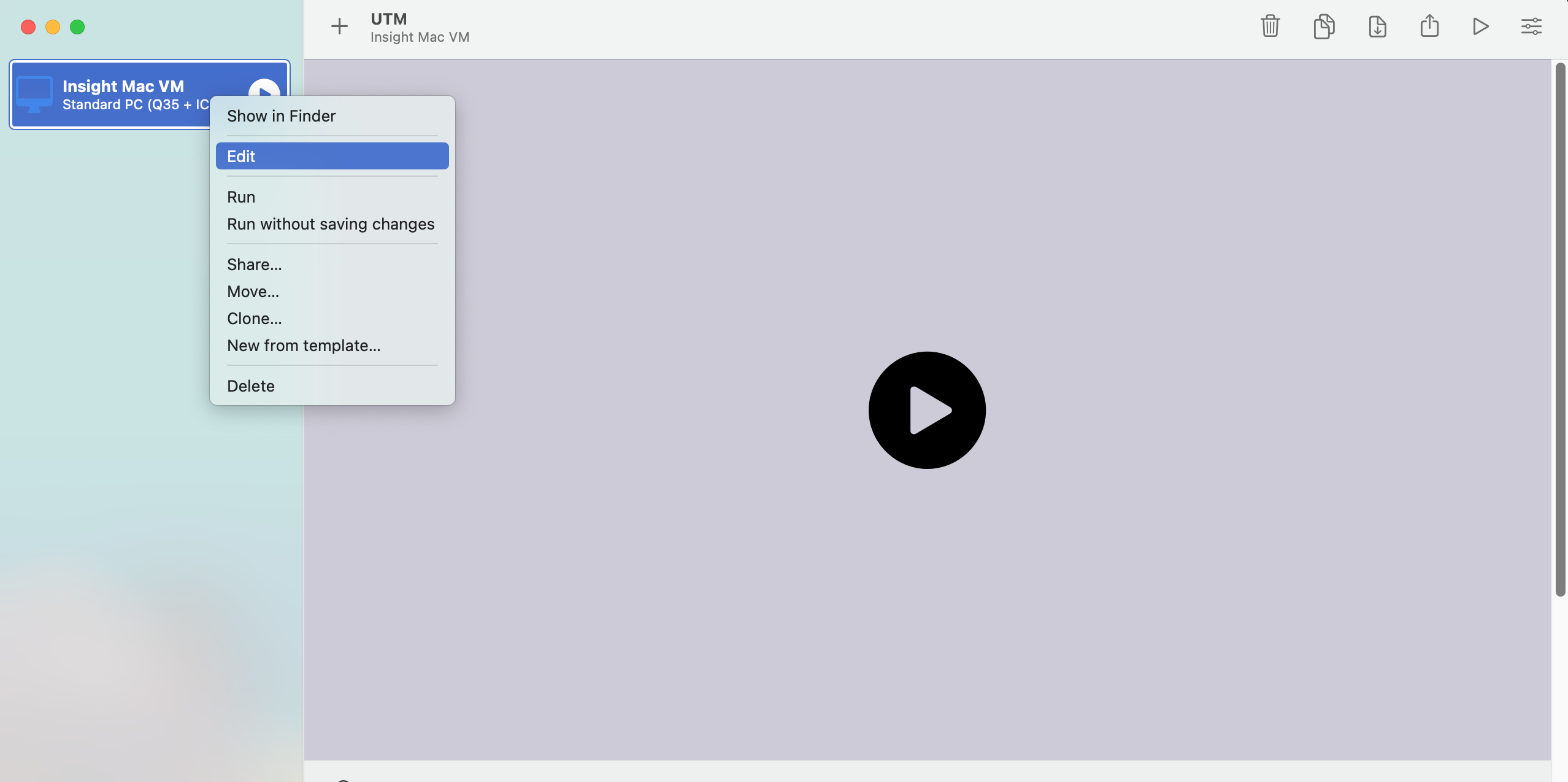
9. Right click on the newly created VM and click Edit.
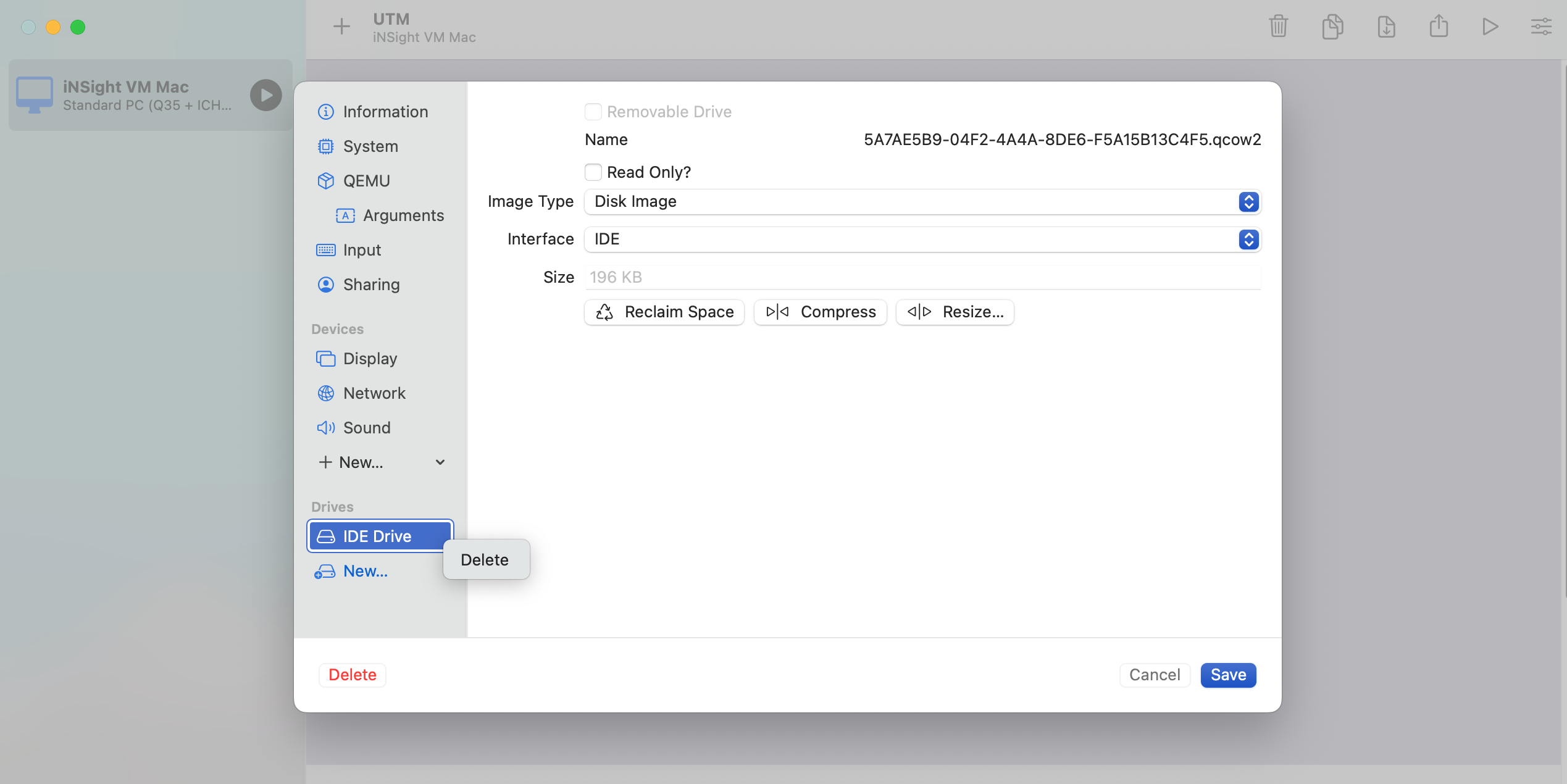
10. Right click on the IDE Drive and Delete it. When asked whether you are you sure you want to permanently delete this disk image, click Delete again.
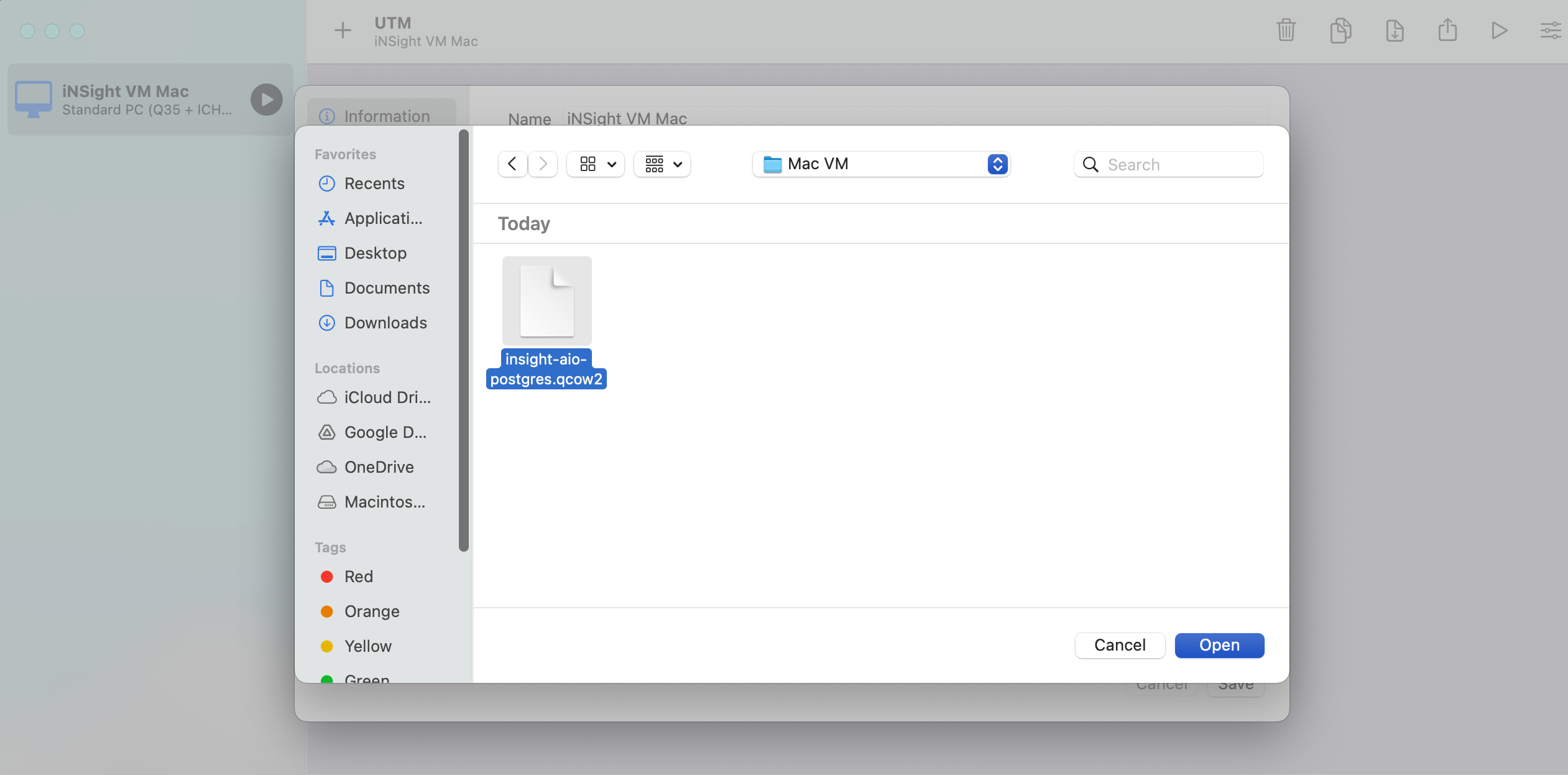
11. Click on the New… option under Drives, select Import and continue to Open the insight-aio-postgres.qcow2 file that you downloaded.
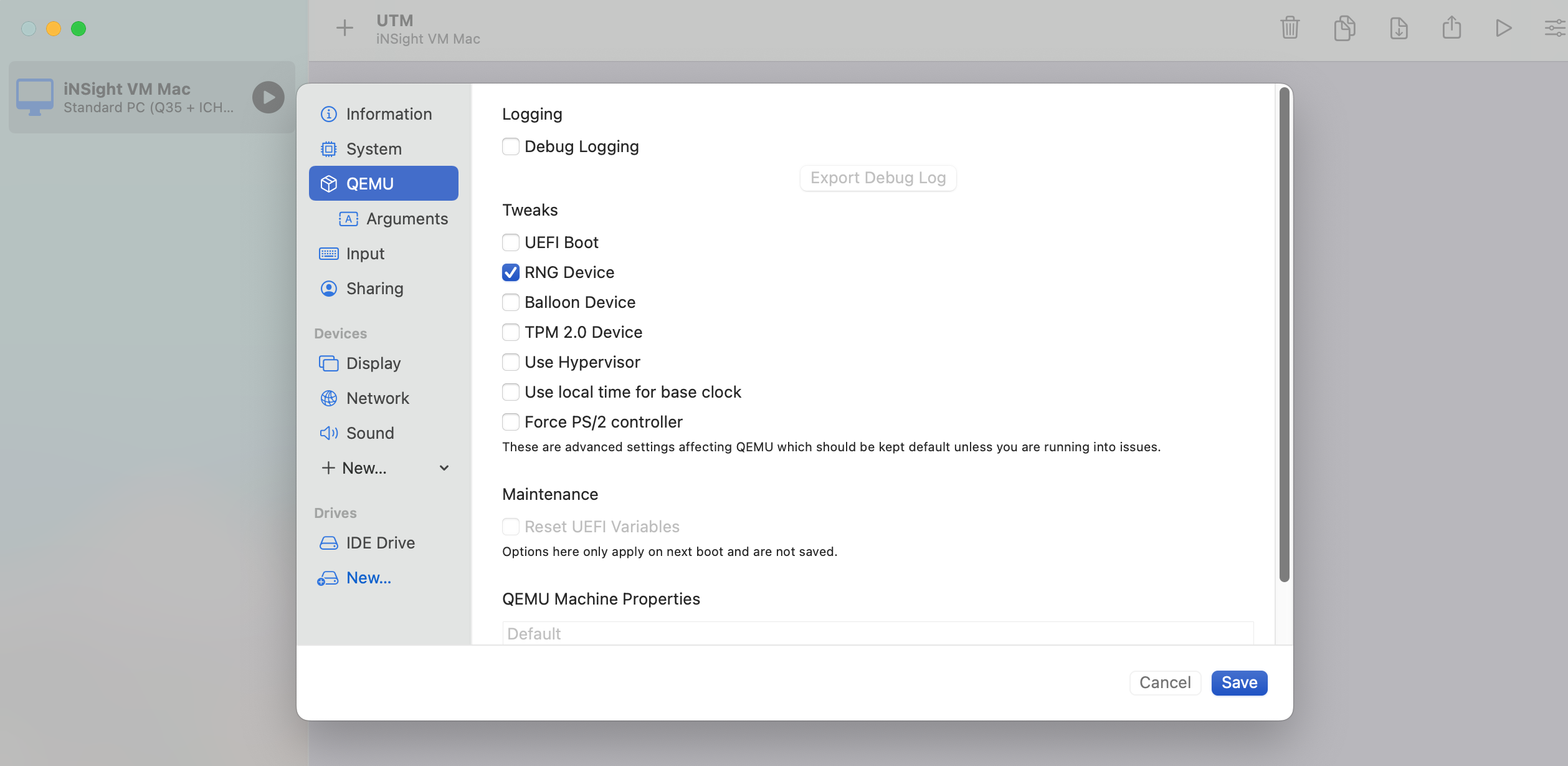
12. Under the QEMU option, disable the UEFI Boot option and click Save, which will import the VM.
13. Click on the Play button to start up your VM, and wait for the startup to complete, this might take a while.
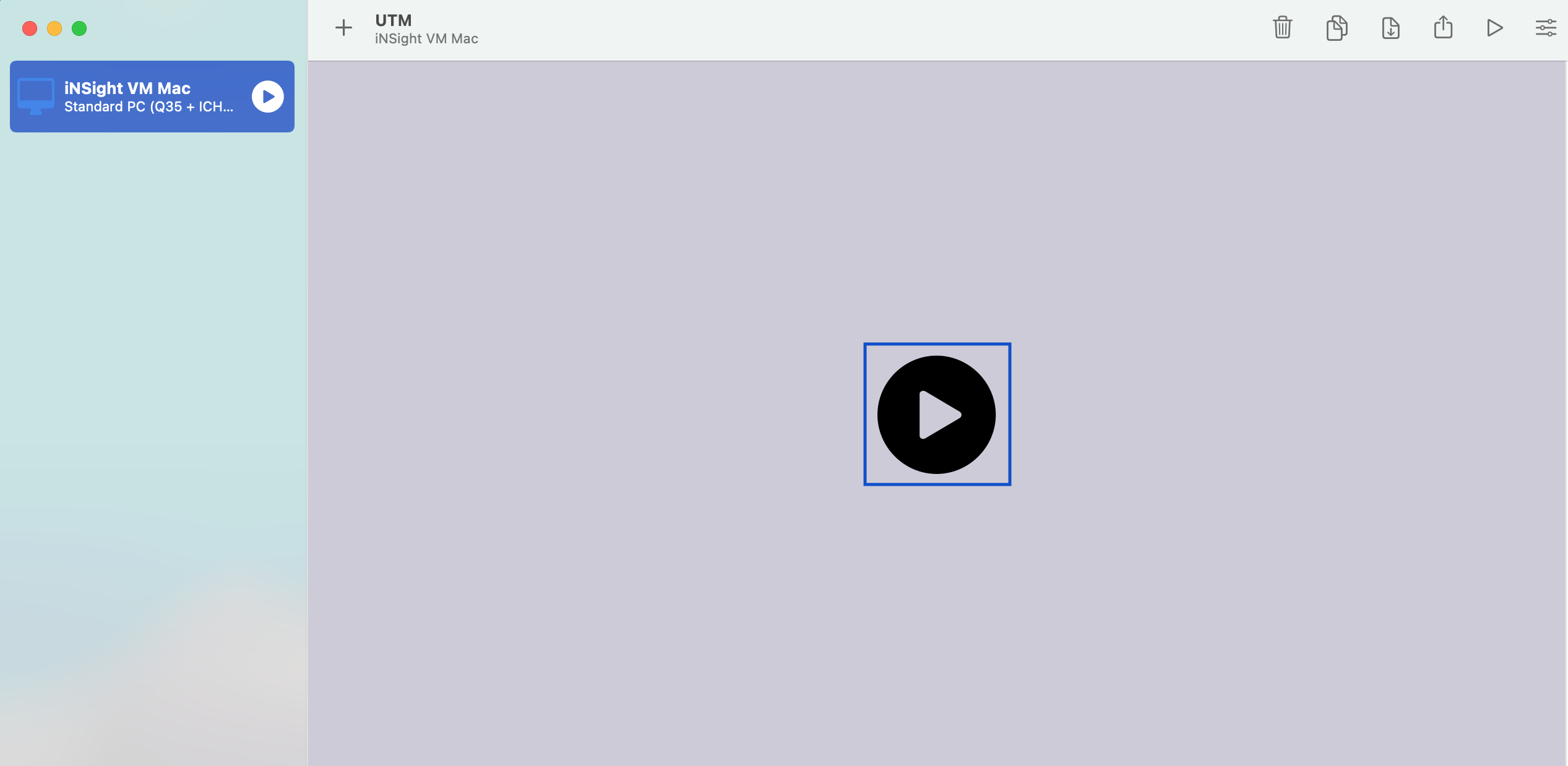
Starting up the iNSight application
The next step is to start up the iNSight application on your VM.
1. In the command prompt, enter the following username:
- vagrant
2. Now enter the following password:
- vagrant
Note that nothing will display when you enter the password. This is a security feature of Linux. Simply enter the password and press [Enter].

3. Switch to the insight user by entering the following command:
- sudo su – insight
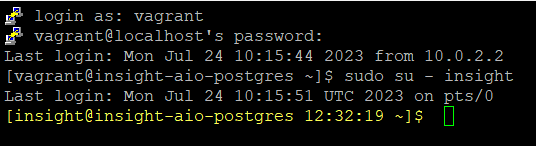
4. Now that you have logged into the iNSight application, you need to startup Tomcat by entering the following command:
- cd product/tomcat/bin/
- ./startup.sh

5. While Tomcat starts up, you can enter the following command to start up Supervisor:
- spvr

6. Run the ip ad command, to view your address
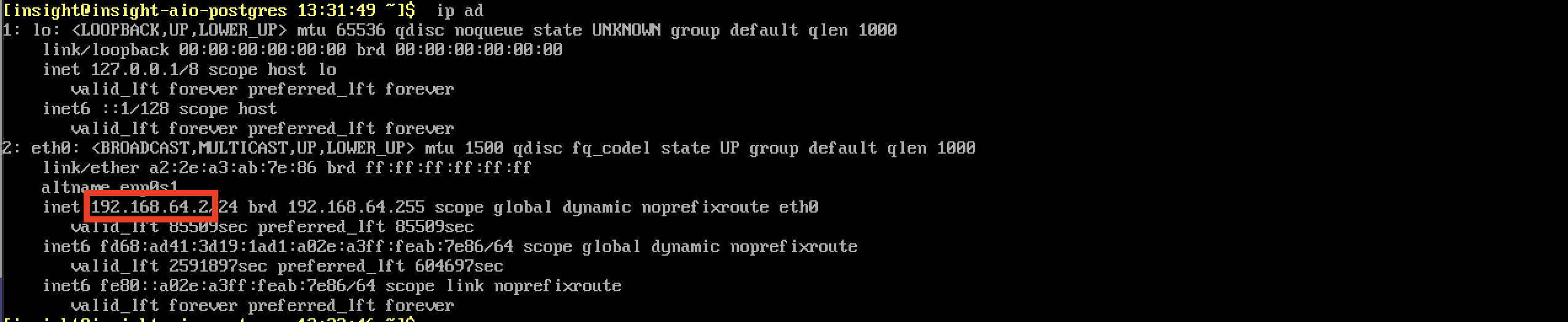
7. Now go to the iNSight frontend by opening an internet browser and navigating to the following URL: http://YOURADDRESS:8080/insight
8. On the iNSight login page, enter the login credentials and click the Login button:

-
Username – admin
-
Password – insight@1
9. Click on the iNSight logo in the top left of the screen.
10. Enter the search term “ba” in the Search field and then select the Backend Servers screen option that displays.

11. Here you can see the System backend server. Ensure the Status is set to Stopped and ensure you click the Commit button if you make any changes.

12. Now select the Stopped status of the System backend server and click the Play button on the iNSight toolbar to start it again.

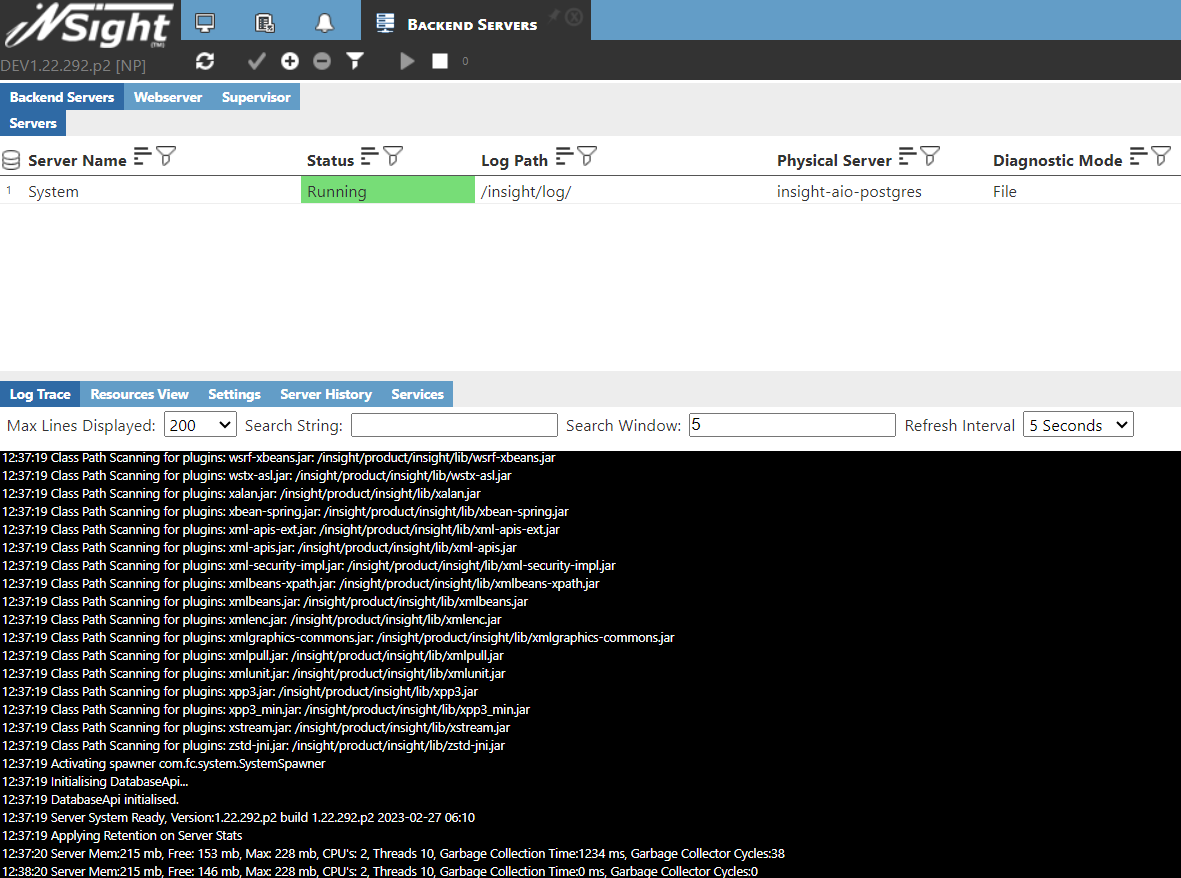
13. Once the Status has changed to Start, select the System backend server again and set the Refresh interval to 5 seconds on the Log Trace tab.
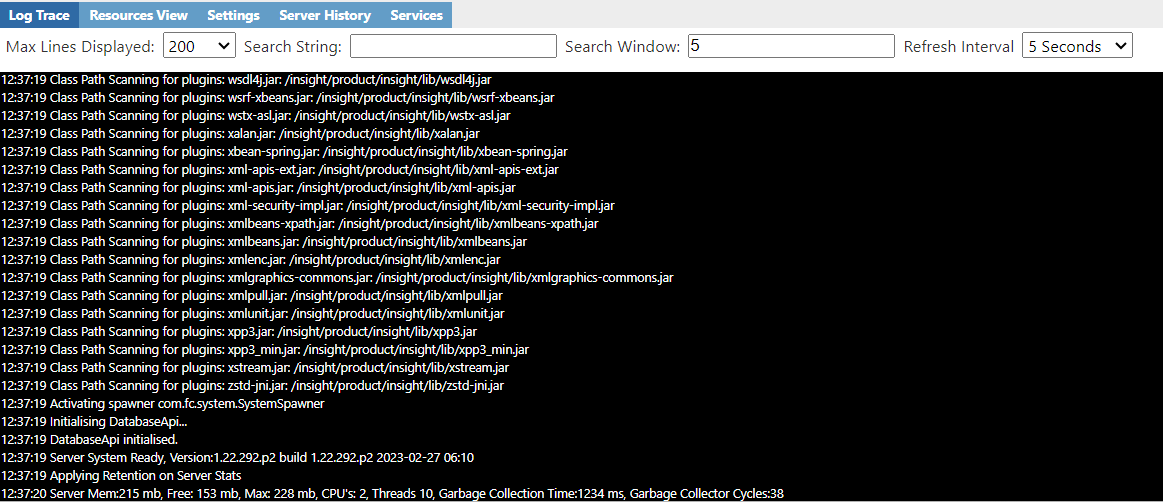
14. Now you can follow the log to see when the System backend server is up and running. Click the Refresh button and the Status will change to Running.
Now you can follow the log to see when the System backend server is up and running. Click the Refresh button and the Status will change to Running.
15. Next we will add three new database connections. Open the Database Connections screen, click the + button and enter the following details:
15.1 Connection 1
- Name: INSIGHT_DBM
- Username: insight_dbm
- Password: Insightdata123
- URL: jdbc:postgresql://localhost:5432/insight
- Driver: PostgreSQL
15.2 Connection 2
- Name: ODS
- Username: ods
- Password: Insightdata123
- URL: jdbc:postgresql://localhost:5432/insight
- Driver: PostgreSQL
15.3 Connection 3
- Name: INSIGHT
- Username: insight
- Password: Insightdata123
- URL: jdbc:postgresql://localhost:5432/insight
- Driver: PostgreSQL
16. Once you have created all three connections click the Commit button to save your changes.
You’re now set up and ready to go!