
Copy of Demonstrating the Core Wallet Platform API
In many cases, only the server itself will have access to the API. However, if an API is available publicly we can set it up on Insomnia to test it. Typically, you would need to VPN in to access the API.
Testing APIs on Insomnia allows us to in isolation instead of needing to test the full API channel. If we can ensure that everything is working as expected on Insomnia, it means we will easily be able to easily integrate it into iNSight at a later time.
The CWP API is only available in asynchronous mode, which means we require a web service to which we can send the result. We use Webhook.site to generate a unique asynchronous result URL. Anything that’s being sent asynchronously is sent to this URL and we can then view the result on the screen. The generated URL updates every few hours, so you will need to update it periodically.
We are going to be integrating four API calls:
-
Single Stage (Async) Payment API call
-
Reversal API call
-
Transaction Status Query API call
-
Transaction Status Update API call
If we look at the Certificates section of our CWP API Specification Document, we can see that only the HTTP mode is available. Therefore, we can jump straight into setting up the Payment API.
We will be using the CWP API Specification Document we covered in an earlier topic.
Single Stage (Async) Payment API call
To set up the Single Stage (Async) Payment API call:
1. Copy the URL endpoint from the specification document and then open the Insomnia application.
2. Create a new Request Collection called “Netstream USSD User Journey”.
3. Create a new folder called “CWP API” where we can group all the CWP API calls.
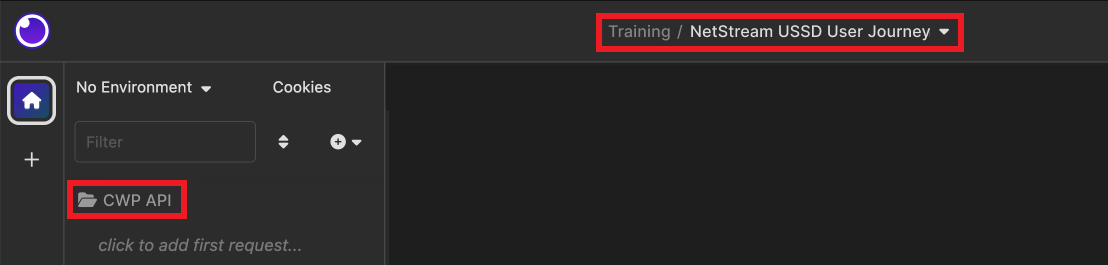
4. Create a new HTTP Request and rename it to “Payment”.
5. Paste the URL endpoint you copied from the specification document, which is the endpoint we will be posting our request to.

6. The Rest endpoint method must be set to POST.

7. The Headers content-type must be text/ XML so you need to update the Update the Body to XML.

8. The API Specification Document contains a sample packet which you can copy and paste into Insomnia.

9. Click Beautify XML to order the packet.

10. Open the Headers tab. By choosing XML it automatically adds the Content-Type as “application/xml”. Change this to “text/xml”.
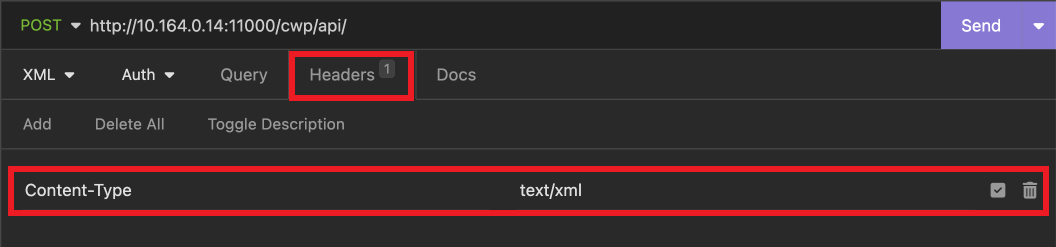
11. Open the XML Body tab, click the Send button to run the API call. We will receive a response of code -1003. If you look at the API response codes in the specification document, you can see this means the username and password combination is invalid.

12. To fix the error you need to update the packet using the information in your specification document:
-
API Authorization Values – Update the username field using the value in the specification document.
-
API Encoded Values – Update the password and securityCredential fields using the values in the specification document.
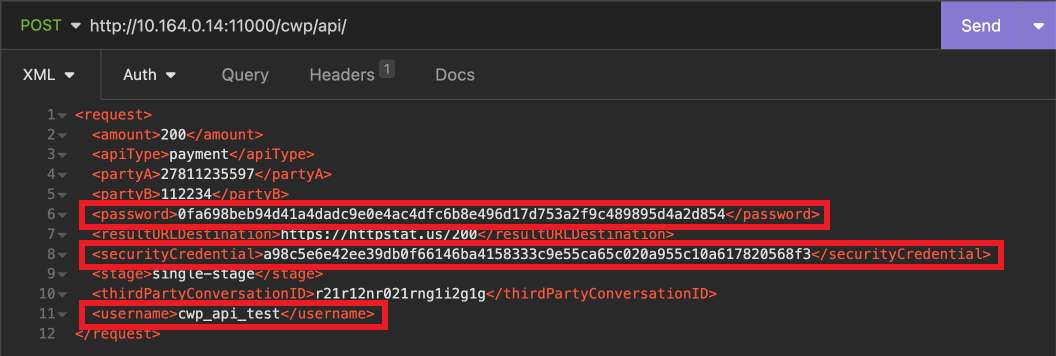
13. Click Send again and you should get a successful response.
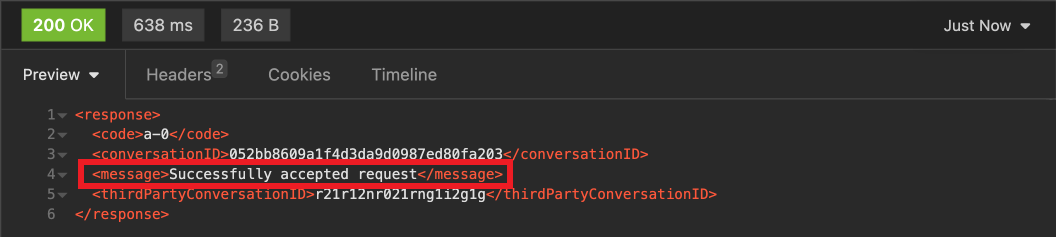
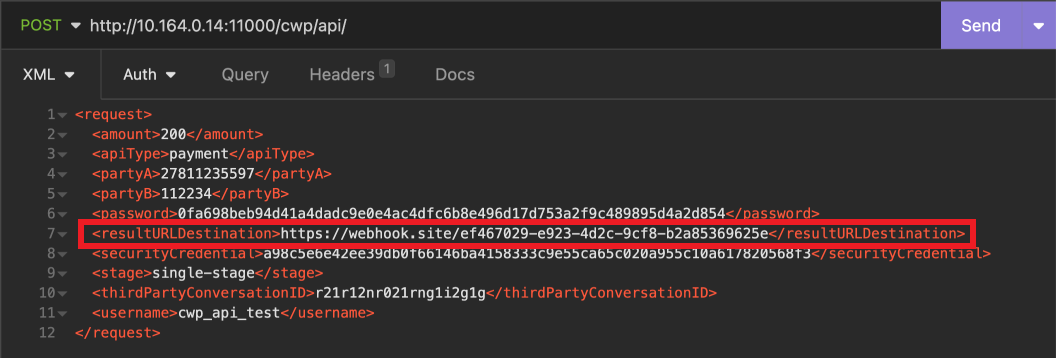
14. Update the resultURLDestination field with the result URL generated in Webhook.site.
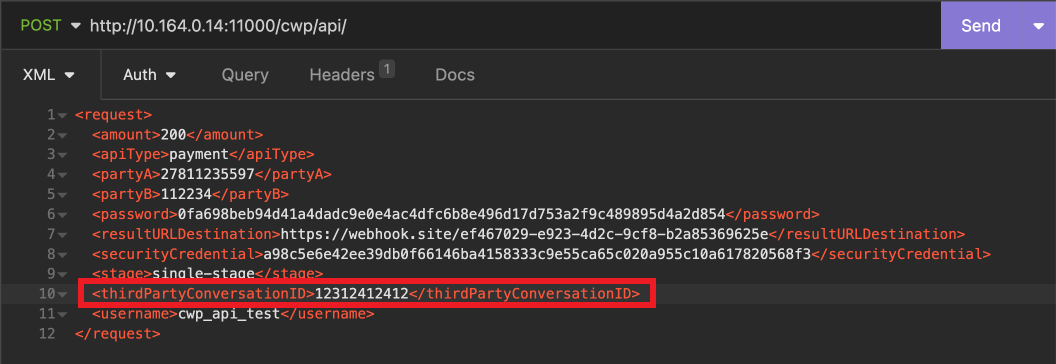
15. Update the thirdPartyConversationID field with a unique ID and click Send.
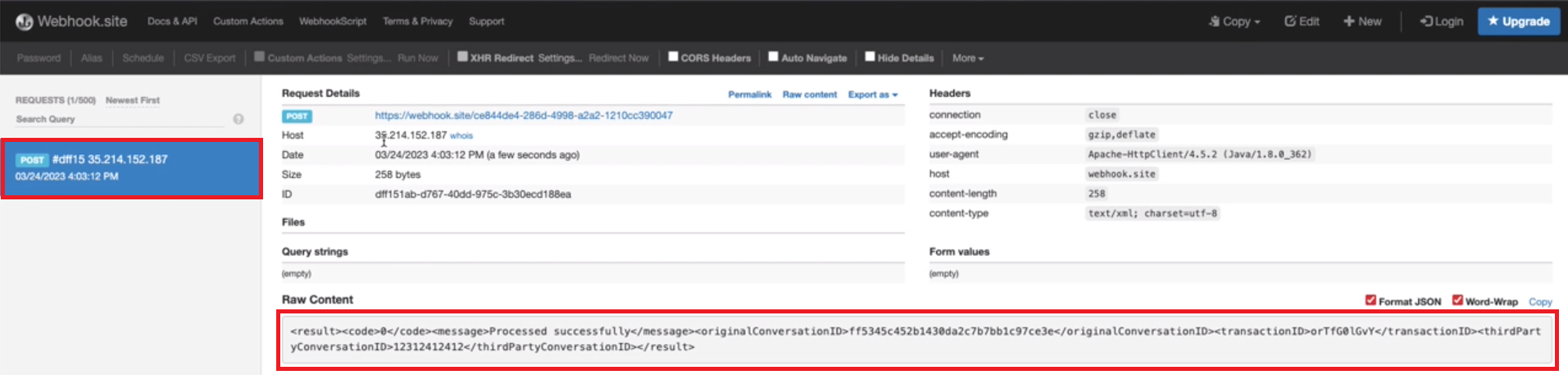
16. If you look at Webhook.site you can see the POST and the result that the platform received back.
17. You can now go and change the parameters, such as partyA and partyB, as desired to test the API call. For example, you can run the API call and cross check the response codes against those on the specification document.
Reversal API call
The Reversal API call has a very similar setup to the Single Stage (Async) Payment API call. Therefore, we can duplicate the Payment API call and simply update the required fields.
To set up the Reversal API call:
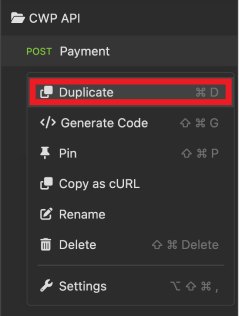
1. Duplicate the Payment API call and rename it “Reversal”.
2. Copy the sample packet from the specification document and paste it below the sample packet we used for the Payment API call.
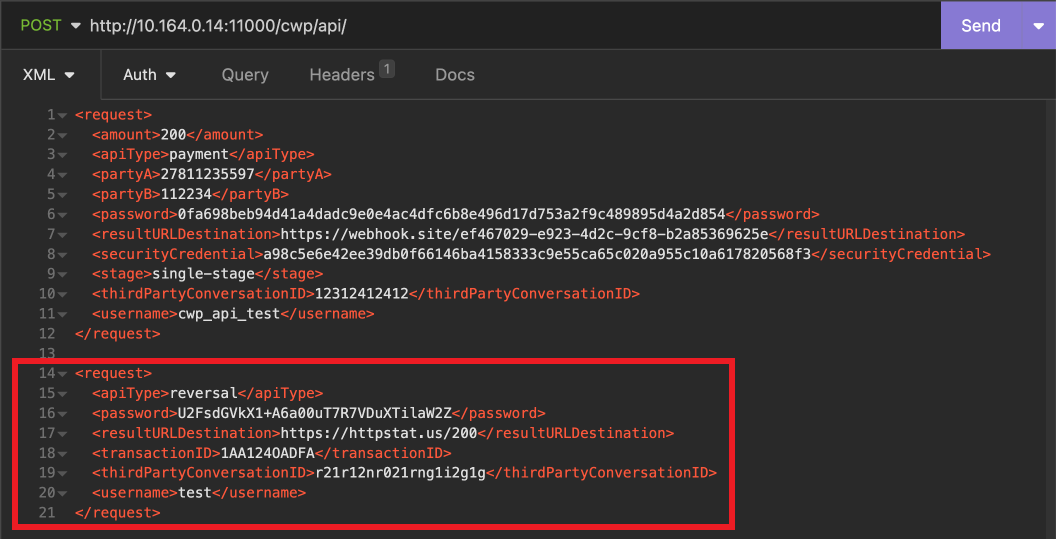
3. Replace the username, password and resultURLDestination fields in the Reversal packet with those in the Payment packet.

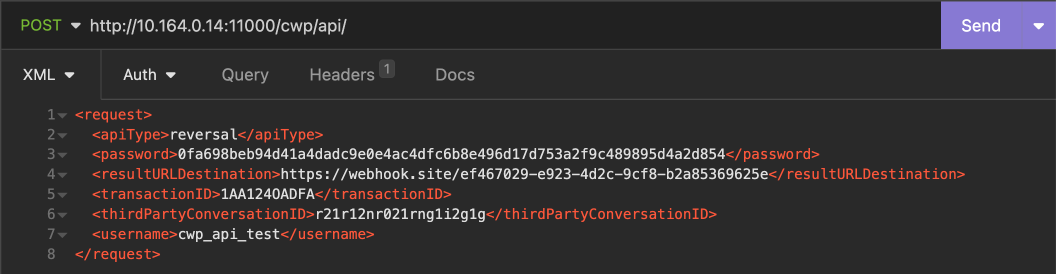
4. Delete the sample packet we used in the Payment API call.
5. Click Beautify XML to order the packet and then click Send run the API call.
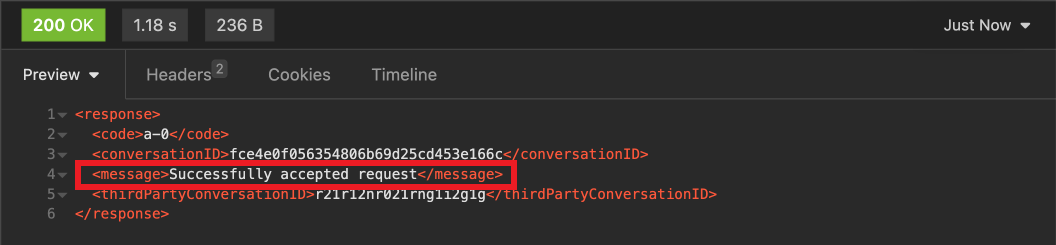
6. The result should confirm that the Reversal was completed successfully.
Transaction Status Query API call
Once again, the Transaction Status Query API call has a very similar setup to the Payment and Reversal API calls so we will simply duplicate the Reversal API call and change the required fields.
To set up the Transaction Status Query API call:
1. Duplicate the Reversal API call and rename it “Transaction Status Query”.
2. Copy the sample packet from the specification document and paste it below the sample packet we used for the Reversal API call.
3. Replace the username, password and resultURLDestination fields in the Transaction Status Query packet with those in the Reversal packet.
4. Delete the sample packet we used in the Reversal API call.
5. Click Beautify XML to order the packet and then click Send run the API call.

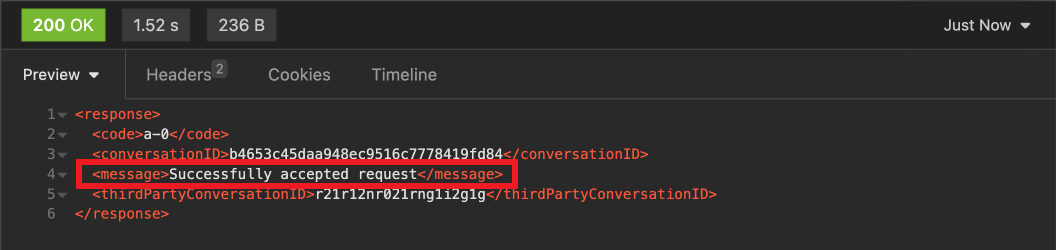
6. The result should confirm that the Transaction Status Query was completed successfully.
Transaction Status Query API call
Once again the CWP Transaction Status Update API call has a very similar setup to the Payment, Reversal, and Transaction Status Query API calls, so we will simply duplicate the Transaction Status Query API call and change the required fields.
To set up the Transaction Status Update API call:
1. Duplicate the Transaction Status Query API call and rename it “Transaction Status Update”.
2. Copy the sample packet from the specification document and paste it below the sample packet we used for the Transaction Status Query API call.
3. Replace the username, password and resultURLDestination fields in the Transaction Status Update packet with those in the Transaction Status Query packet.
4. Delete the sample packet we used in the Transaction Status Query API call.
5. Click Beautify XML to order the packet and then click Send run the API call.
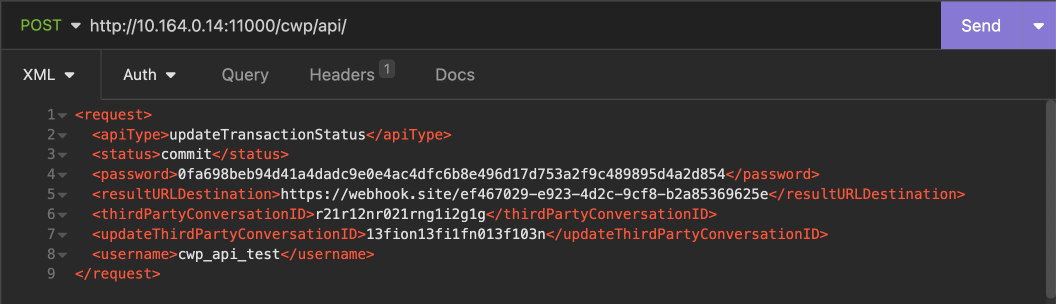
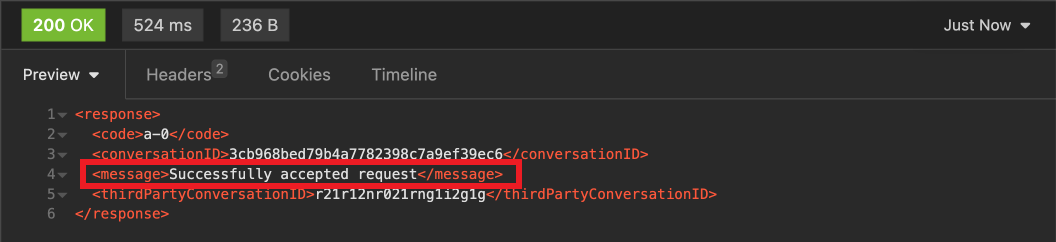
6. The result should confirm that the Transaction Status Update was completed successfully.
Testing connectivity from iNSight to the CWP API
When you are testing an API, it is useful to be able to perform a connectivity test from the application server. You can use the wget and curl commands to ensure that our server can reach the endpoint.
1. In Insomnia, copy the URL our request is going to be sent to.

2. On the backend of the application server we are going to be testing from, enter:
- sudo su – insight
- cd users/*your username*
**Replace with your own username.
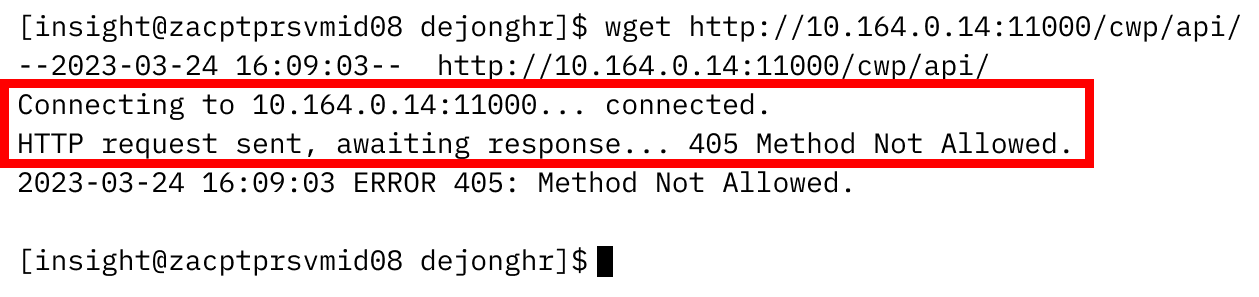
3. Run a wget against the URL:
- wget *URL*
**replace with the URL you copied in the first step.
The test will tell you that you have connectivity, but that the method is not allowed.
Testing the CWP API with curl
1. In the Payment API packet, change the thirdPartyConversationId.

2. Copy the Payment API packet and paste it into an XML minifier to make sure there are no spaces and so on. Copy the Output xml from the minifier.
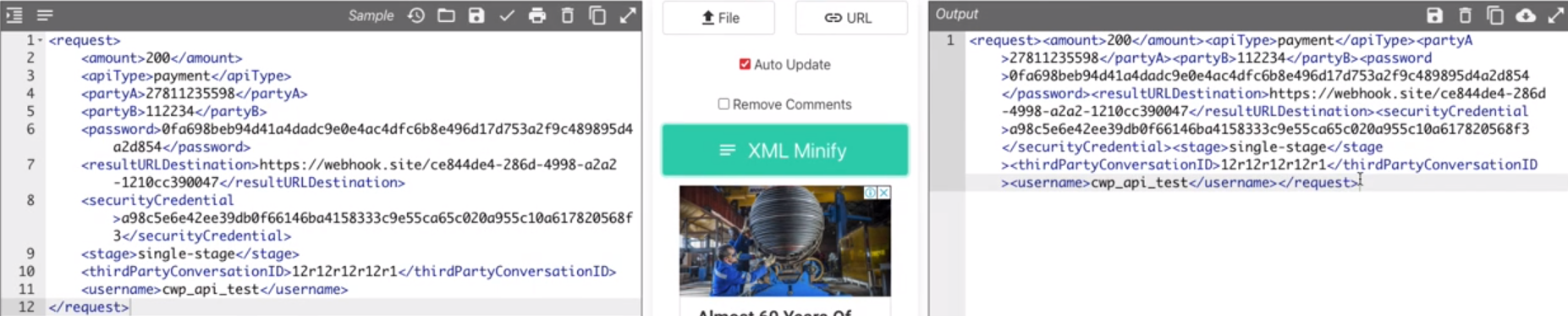
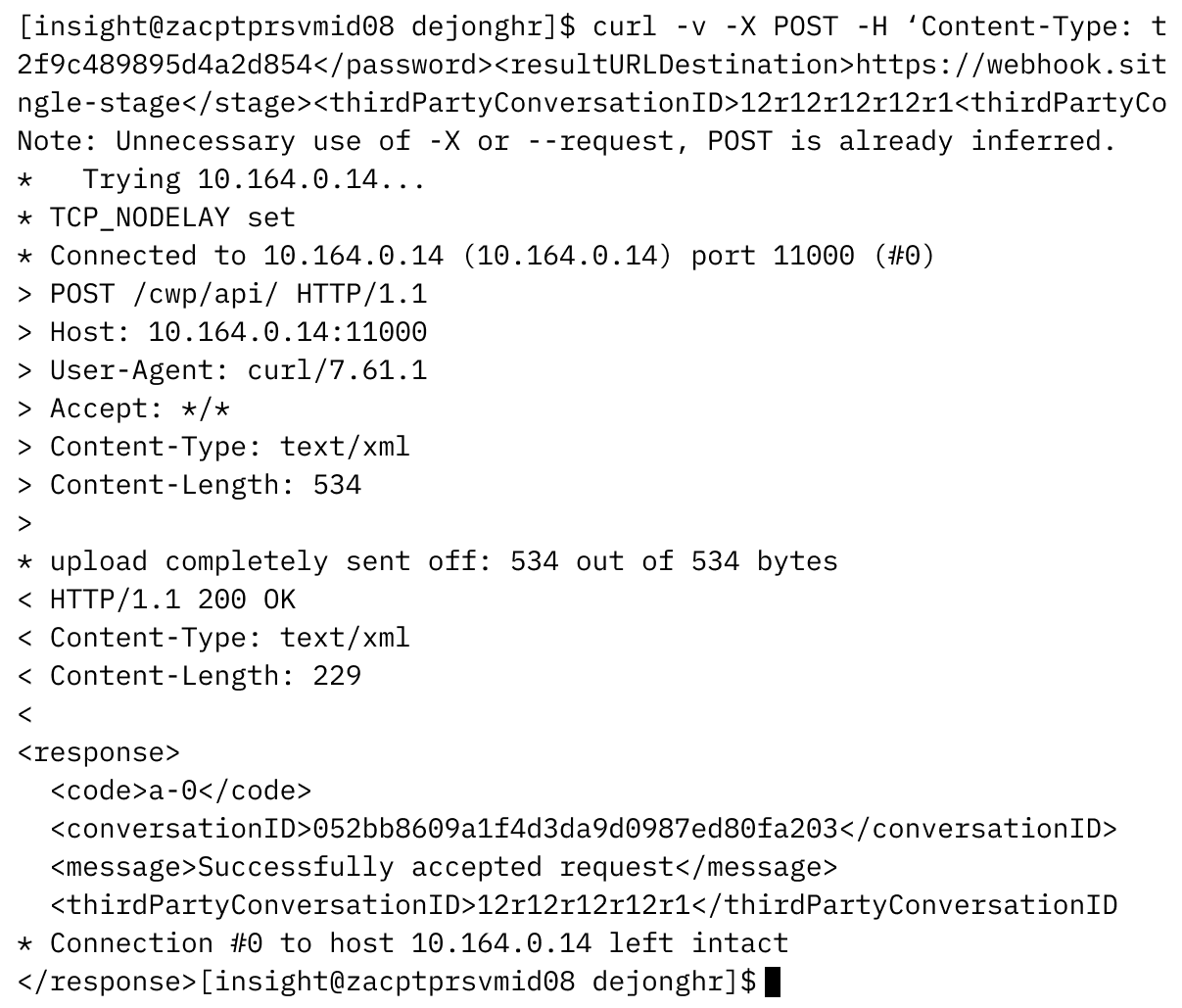
3. Now we are going to use Curl to test from the server. On the backend, enter:
- curl -v -X POST -h ‘Content-Type: text/xml’ -d ‘*packet*’ URL
*packet* – Paste the packet you minified in step five.
*URL* – Paste the same URL you used in the wget command.
-
v – Verbose.
-
-X – Adds the method type.
-
-H – Adds a header for the content type.
-
-d – The actual XML we want to send.
-
URL – The URL we want to send the request to.

4. Press [Enter] to send the request. We can then see that it connected to the IP and port, that it accepts everything and that the content type is text of XML. We can also see that we got an HTTP 200 OK response back with the conversation ID.
5. You could also perform this connection test for the remaining three API calls.
At this point we are testing from the server but we are still outside the iNSight application. When you debug, you need to determine if the application is problematic or if it is the actual connection itself from the host OS. You will first test from the application. If everything is fine there, you will run your Curl and wget commands to check for connectivity and make sure if the API is working.
Summary
In this topic we have shown you how to test an API from Insomnia. We have also shown you how to test the connectivity from iNSight to an API, and how to use the the curl command to test from the application server itself.
In the next topic we will integrate and test the Netstream APIs.